Landing page HTML export: what moves with your page?
Understand HTML, CSS, JavaScript, and asset downloads, the services that may remain connected, and what to check before an exported landing page goes live.
An HTML export gives you files you can inspect and move
A landing page HTML export gives you the page’s source and the assets included in the download. In Waveform, the public source workflow covers HTML, CSS, JavaScript, and local assets. This is useful when you want to review the page in your own tools, hand it to a developer, or use hosting you manage.
Portability also requires understanding dependencies. The files describe the page, but they do not automatically move a payment service, booking account, managed form endpoint, or domain registration. Before choosing an export workflow, list what the visitor can do and which system makes each action work. That short inventory prevents an attractive page from becoming an incomplete handoff.
Check the files in your download
HTML holds the document structure and content. CSS controls its presentation. JavaScript supports browser behavior where the page uses it. Images, fonts, and other local assets may live in folders referenced by those files. Read the actual download rather than assuming every project uses the same filenames or arrangement.
Waveform’s download includes portable source and local assets, with included font licenses. Keep applicable licenses and attributions with the files. Keep the usage permissions for your supplied photos and logos with the project. If a link still points to an external resource, identify who controls it and whether it will remain available on the destination host.
- Open the main document and identify linked styles, scripts, and assets.
- Check that expected pages and local files are present.
- Keep license files with the material they describe.
- List external requests, form destinations, analytics, checkout, and booking links.
Include the version, approved content, and connections
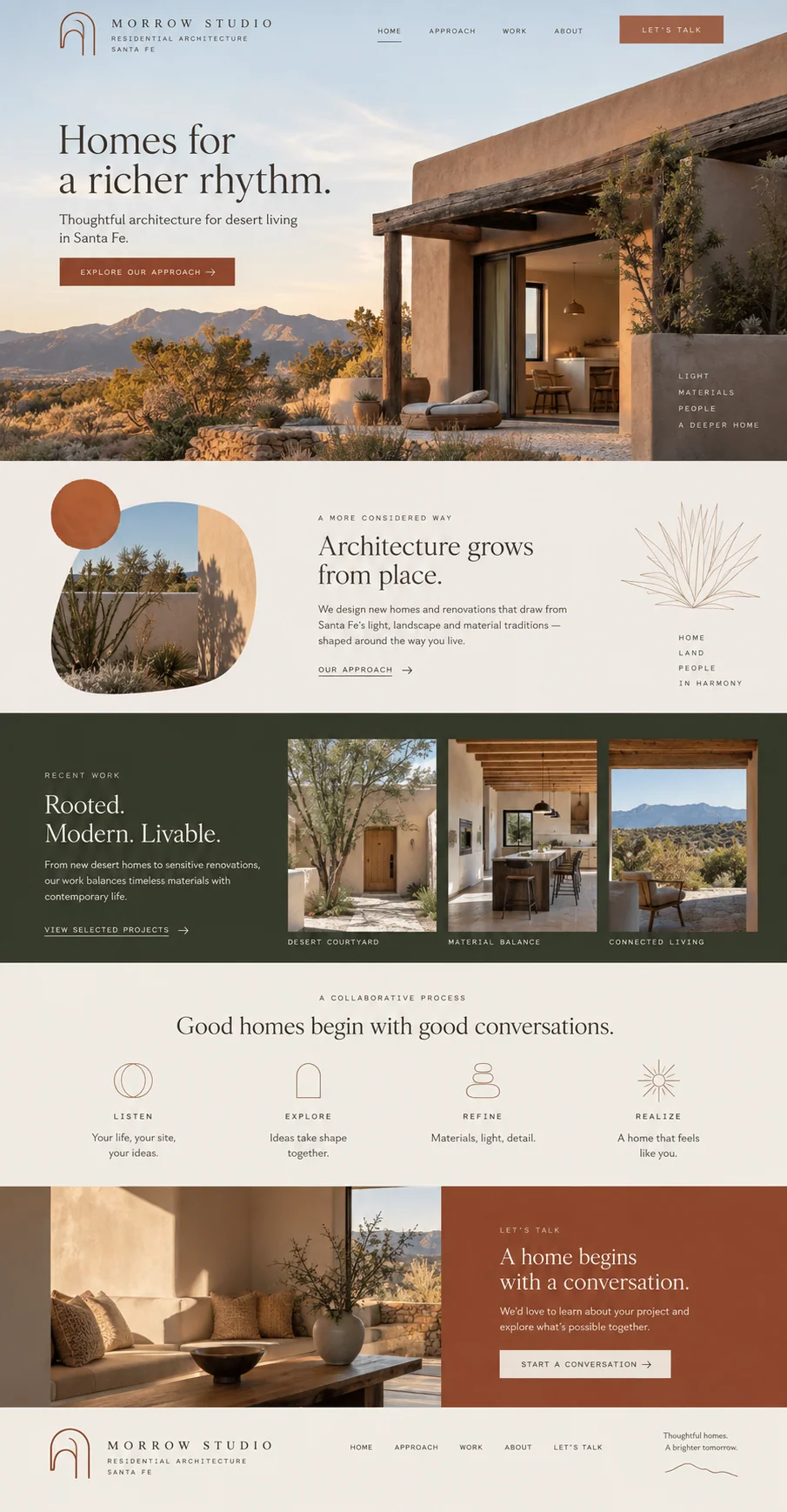
Consider a small architecture practice with a project inquiry page. The visual direction might resemble the Morrow Studio concept, but the handoff needs more than that appearance. The receiving team needs the approved business details, the intended inquiry destination, the chosen version, and a clear note about anything still awaiting review.
A useful handoff also identifies who will maintain the page. Record where it is hosted, how a replacement is published, who owns the domain, and how someone checks that inquiries arrive. Keep private credentials outside the source files. These notes can be brief; their purpose is to make the next edit or outage manageable without rediscovering how the page was connected.
Test connected services on the destination
A downloaded Waveform page with a managed form still depends on its configured hosted form endpoint. Test that connection where you intend to use the page. Moving files can change the origin, paths, and security conditions under which a browser makes requests. A form that worked in one preview may need attention on another host.
Trace a clearly marked test submission from the browser to the receiving system. Check the error response as well as the success message. For checkout or scheduling links, make sure the correct destination opens and that any necessary product or booking context remains intact.
Review URLs and search settings when the page moves
Open the page from its new HTTPS address and follow the links as a visitor would. Check relative asset paths, navigation, social previews, and the preferred public URL. If an old public address is being replaced, plan the redirect rather than leaving two versions with unclear ownership or stale information.
Google’s canonicalization guidance explains how redirects and canonical links can signal a preferred URL for duplicate content. Coordinate those signals with the actual move. Keep unpublished previews out of search, and verify that any noindex setting intended for a preview does not accidentally remain on the final public page.
Source: Google Search Central: How to specify a canonical URL
Use the browser to review the finished result
Check desktop and mobile layouts, keyboard access, readable text, image alternatives, and labeled form controls. W3C’s development guidance offers a starting list. Test interactive behavior at the hosted address rather than relying only on opening a local file, because hosting can affect routing, browser requests, and security policies.
When your final version is ready, open Publish and choose Download ZIP. Review any quality notes and test the files on your destination host. Keep the reviewed release with your handoff notes so the team can identify which files were checked, which were published, and which later edits need another pass. That record lets the next person make an edit without guessing which files or services are in use.
Source: W3C Web Accessibility Initiative: Developing for web accessibility
Sources and further reading
- Developing for web accessibilityW3C Web Accessibility Initiative
- How to specify a canonical URLGoogle Search Central