Lead generation forms: fields, errors, and confirmations
Design an inquiry form with the right fields, readable labels, recoverable errors, and confirmation that matches what the business actually received.
Work backward from the first reply
A lead generation form should collect enough information for the business to respond appropriately. Begin with the person who receives the inquiry: what do they need to decide, and what will they do next? That answer gives you a better field list than copying a competitor’s form or choosing an arbitrary maximum number of questions.
For a repair request, the essentials might include the type of problem, whether the property is in the service area, and a way to reply. Detailed measurements may wait until follow-up. W3C’s forms tutorial recommends asking only for information needed to complete the process. A field earns its place when someone uses its answer for this stage of the request.
Drain Hound: check how the inquiry reaches the business
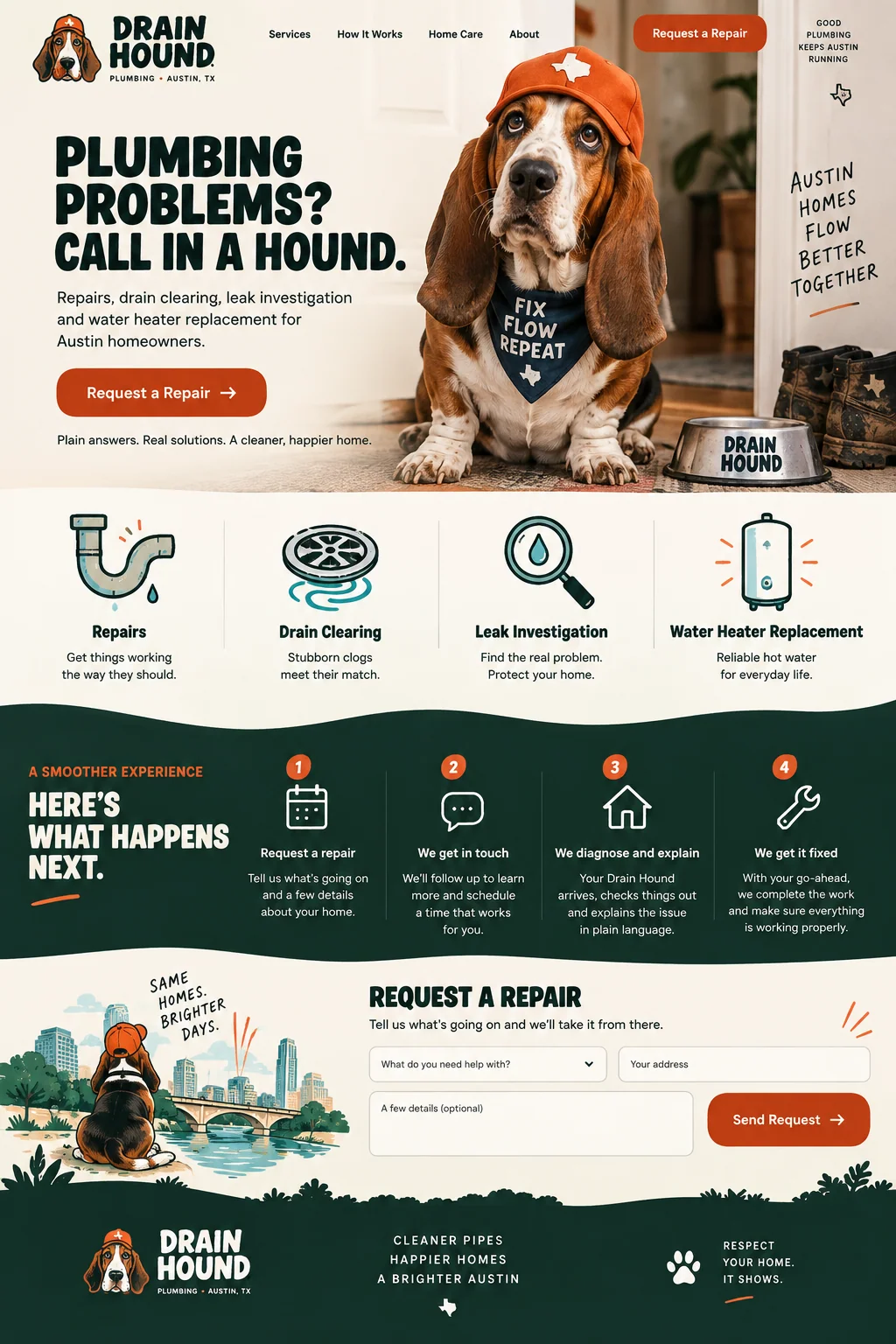
The Drain Hound concept puts its form after a four-step explanation of the repair process. The sketch shows a service selector, an address field, optional details, and a request button. That placement gives someone context before asking them to describe the job.
The visible form has no obvious phone or email field. For a first-time visitor whose contact information is not already known, the business would need a way to reply. We would also decide whether a full address is necessary immediately or whether a postal code can establish coverage first. These are operational questions to resolve before turning the sketch into a live form.
Give every question a reason and a clear label
List the proposed fields and write who uses each answer. Remove questions no one needs yet. If a field is optional, say so; if the request cannot proceed without it, explain the requirement. For a long answer, a short example can help someone provide useful detail without writing an essay.
Keep labels visible while the visitor types and associate them with their controls. W3C’s labeling guidance explains that relationship. Placeholder text can show an example, but it disappears during entry and should not carry the field’s identity. Use ordinary names such as Email address or Property postal code instead of an internal label such as Lead contact or Territory code.
Accept reasonable answers and explain the ones you cannot use
Check the formats you truly need. A phone number may include spaces, punctuation, or a country code. A person may have a single name or an address that does not fit a local example. Avoid rejecting an answer just because it differs from the example shown in the field.
W3C’s validation guidance recommends accommodating different input formats and checking submissions on the server as well as in the browser. When there is an error, identify the field and explain the correction. Keep the other answers intact. An error that says only Invalid request leaves the visitor to guess what the system disliked.
Say what happened after submission
A confirmation should distinguish receipt from a later commitment. If someone sent a request for an estimate, confirm the request and describe the next step. Do not tell them an appointment is booked unless the system actually reserved it. Give a realistic reply expectation that the business has agreed to meet.
Make success and error messages available to assistive technology, not only visible as a color change. W3C’s notification tutorial covers feedback after submission and ways to help users find and correct errors. Also review waiting and connection-failure states. If the browser cannot determine whether a request arrived, avoid inviting repeated submissions without first checking for a saved result.
Source: W3C Web Accessibility Initiative: User notifications
Follow a marked test inquiry to the person who receives it
Test an empty form, a correctable error, and a valid request. Use clearly marked test details and verify that the final record contains the answers you expected. Check what the receiving team sees, including the reply address, selected service, and page the inquiry came from.
When using Waveform forms, review receipt and external delivery separately. A saved submission can still be waiting for a connected destination to acknowledge it. If an automation handles the next step, verify that step too. Review the form again when fields, destinations, or staff responsibilities change. The page has done its job only when the intended request reaches a person or system that can handle it.
- Complete the form with a keyboard and on a phone with the keyboard open.
- Check required fields, labels, error recovery, and the confirmation wording.
- Verify the saved request and any separately configured delivery.
- Assign someone to investigate missing requests and keep the reply route current.
Sources and further reading
- Forms tutorialW3C Web Accessibility Initiative
- Labeling controlsW3C Web Accessibility Initiative
- Validating inputW3C Web Accessibility Initiative
- User notificationsW3C Web Accessibility Initiative